SmartSchool OS — AI-Powered School Operating SystemSmartSchool OS — AI-Powered School Operating System
FeaturesPricingAboutDocsSupport
LoginStart free
SmartSchool OS — AI-Powered School Operating SystemSmartSchool OS — AI-Powered School Operating System

One AI-powered operating system for school reports, exams, analytics, and growth — replacing spreadsheet chaos with clarity.

Start free

Product

  • Features
  • Pricing
  • Documentation

Resources

  • Get started
  • Support
  • About

Legal

  • Privacy Policy
  • Terms of Service

© 2026 SmartSchool OS. All rights reserved.

Powered by Globull

Documentation/Learning management (LMS)

Learning management (LMS)

Build structured courses, upload lesson materials, create quizzes, and monitor every student's progress — all from one teacher dashboard.
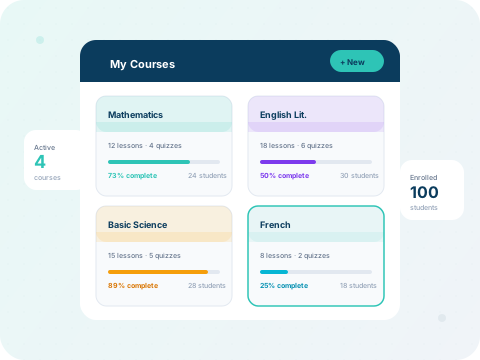
SmartSchool OS LMS dashboard showing course cards with progress bars

What you'll learn:

1. Create a course
2. Add lessons
3. Build quizzes
4. Track progress

Step 1 — Create a course

Go to LMS → Courses → New Course. Enter the course title, description, and assign it to one or more classes. The course becomes immediately visible on the student dashboard.
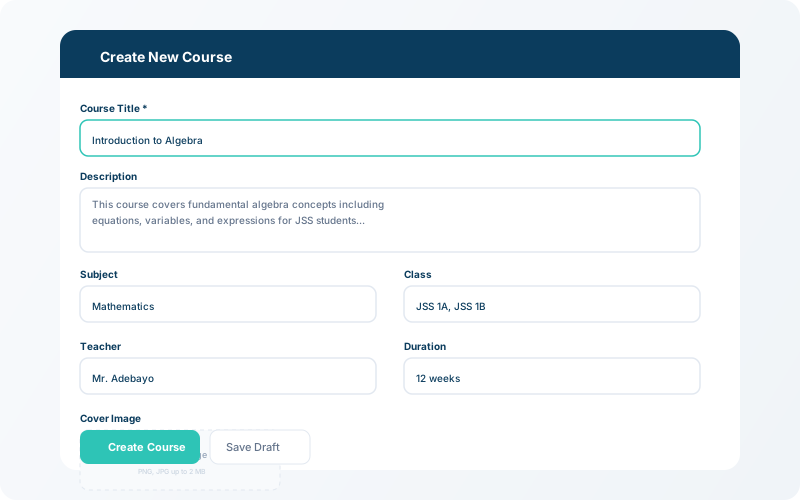
LMS new course form with title, description, class assignment fields
Create a new course — name it, describe it, and assign it to classes.

Step 2 — Add lessons and quizzes

Inside each course, add lessons with text content, file attachments, or video links. You can also create quizzes with multiple question types. Lessons and quizzes are ordered sequentially.

💡 Tip

Mark lessons as mandatory or optional — students see a clear checklist of what to complete.
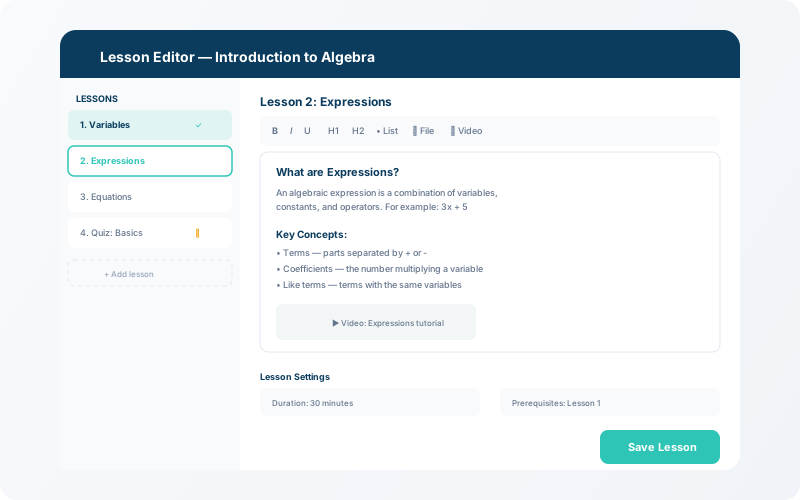
LMS lesson editor with rich text content, file upload, and ordering controls
Add lessons with text, attachments, or video — then reorder with drag-and-drop.

Step 3 — Monitor student progress

The progress dashboard shows completion percentages per student and per lesson. Teachers can identify students who are falling behind and reach out directly through the communication hub.
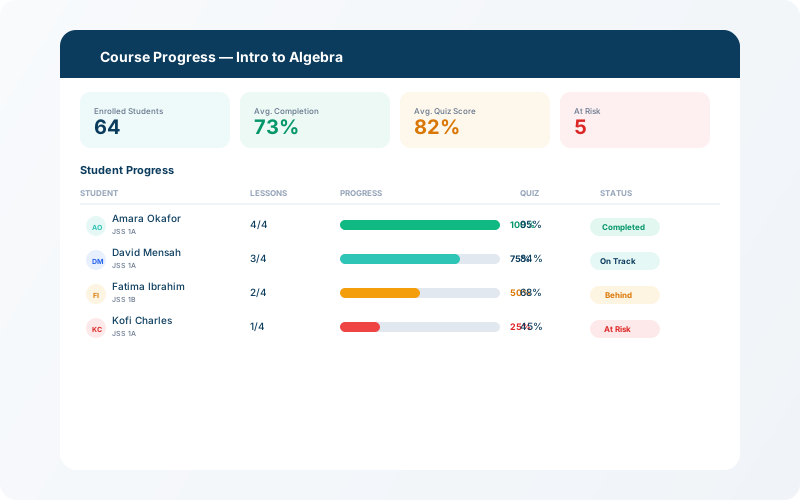

LMS progress tracker showing student completion bars and lesson-level analytics
Track progress per student — see who completed which lessons and quizzes.