SmartSchool OS — AI-Powered School Operating SystemSmartSchool OS — AI-Powered School Operating System
FeaturesPricingAboutDocsSupport
LoginStart free
SmartSchool OS — AI-Powered School Operating SystemSmartSchool OS — AI-Powered School Operating System

One AI-powered operating system for school reports, exams, analytics, and growth — replacing spreadsheet chaos with clarity.

Start free

Product

  • Features
  • Pricing
  • Documentation

Resources

  • Get started
  • Support
  • About

Legal

  • Privacy Policy
  • Terms of Service

© 2026 SmartSchool OS. All rights reserved.

Powered by Globull

Documentation/Administration

Roles and permissions

SmartSchool OS uses a hierarchical role system that controls every module and data point a user can access. Assign the minimum privilege each person needs.
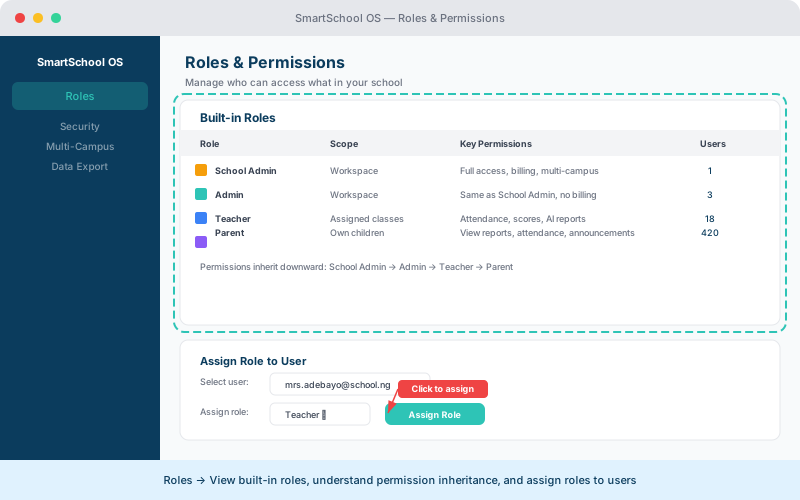
Roles and permissions management panel

Built-in roles

Five predefined roles cover all school operations:

RoleScopeKey permissions
School AdminWorkspaceFull access, billing, multi-campus oversight, manage staff, students, exams, reports, settings
AdminWorkspaceSame as School Admin without billing access
TeacherAssigned classesAttendance, scores, AI reports for own classes
ParentOwn childrenView reports, attendance, announcements
Roles and permissions table showing four built-in roles with scope and key permissions
View all built-in roles, their permission scope, and assign roles to users.

Permission model

Permissions flow top-down. A higher role inherits all permissions of lower roles, plus additional capabilities:

  • School Admins can manage all tenant settings and view cross-campus data.
  • School Admin manages everything within a single workspace.
  • Teachers see only classes they are assigned to.
  • Parents see only their linked children’s data — nothing else.

Role assignment

Roles are assigned during staff invitation or changed later from the Staff panel:

  1. 1Go to Settings → Staff management.
  2. 2Click the staff member’s name to open their profile.
  3. 3Select a new role from the Role dropdown.
  4. 4Click Save — changes take effect immediately.

⚠️ Important

A user can only hold one role at a time. Changing a role immediately revokes the previous permissions.

Audit trail

Every role change is logged with the admin who made the change, the timestamp, and the previous and new role. Access the audit log from Settings → Audit trail.

💡 Tip

Review the audit trail monthly to ensure no unnecessary privilege escalations have occurred.

← AI usage dashboardNext: Security settings →