SmartSchool OS — AI-Powered School Operating SystemSmartSchool OS — AI-Powered School Operating System
FeaturesPricingAboutDocsSupport
LoginStart free
SmartSchool OS — AI-Powered School Operating SystemSmartSchool OS — AI-Powered School Operating System

One AI-powered operating system for school reports, exams, analytics, and growth — replacing spreadsheet chaos with clarity.

Start free

Product

  • Features
  • Pricing
  • Documentation

Resources

  • Get started
  • Support
  • About

Legal

  • Privacy Policy
  • Terms of Service

© 2026 SmartSchool OS. All rights reserved.

Powered by Globull

Documentation/Exams and results

Exam creation

Set up exams in seconds — assign subjects, configure scoring limits, schedule dates, and publish to teachers for score entry.
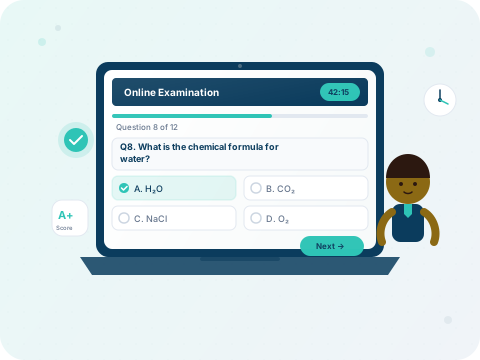
SmartSchool OS online exam creation interface

Creating an exam

Every exam is scoped to the active term. Here's how to set one up:
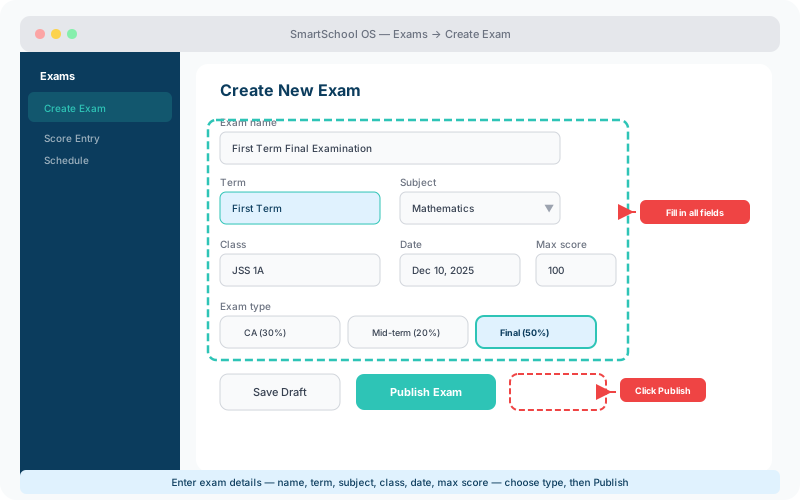
  1. 1Navigate to Exams → Create Exam.
  2. 2Enter the exam name (e.g. "First Term Final Examination").
  3. 3Select the term, subject, and class.
  4. 4Set the date, start time, and maximum obtainable score.
  5. 5Save as draft or publish immediately for score entry.
Exam creation form showing name, term, subject, class, date and score fields
Fill in exam details and click Publish to make it available for score entry.

Exam types and weighting

SmartSchool OS supports multiple assessment types, each with configurable weights:

TypeTypical weightWhen used
Continuous Assessment30%Weekly quizzes, assignments
Mid-term Test20%Half-term examination
Final Examination50%End-of-term exam

💡 Tip

Weights can be customised per-subject. Some schools give practicals higher weighting in Science courses — set this up in the subject settings.

Scheduling exams

The scheduling view shows all exams across classes on a calendar grid. Key features:

  • Conflict detection — overlapping exams in the same class are flagged.
  • Drag-and-drop rescheduling for quick adjustments.
  • Filter by class, subject, or date range.
  • Export the exam timetable as PDF for notice-board printing.

Publishing exams

Published exams become visible to teachers for score entry. Once published, the exam configuration is locked — subject, class, and max score cannot be changed to prevent inconsistencies during grading.

⚠️ Important

Double-check the maximum score and subject before publishing. Changes after publication require admin override and score re-entry.


← Parent portalNext: Score entry →